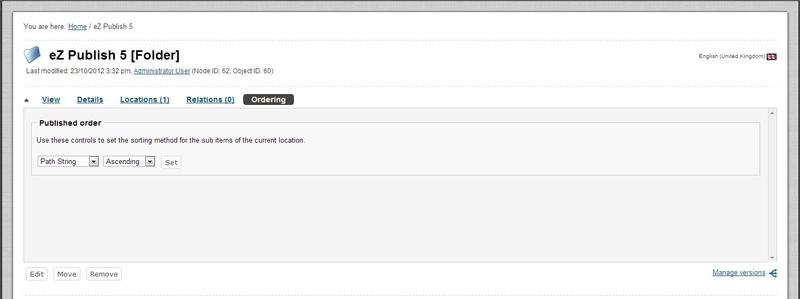
Ordering Content
As of version 4.4 of Exponential the management of sub items have changed. You can prioritize and sort your sub items freely in the back-end without influencing the sort order and prioritization of your published sub items. This is due to the strict division between the management of the front-end and back-end sub items as shown in the description below.
You manage the sorting of your front-end sub items from the "Ordering" tab/window.
Ordering Content
You set up your sorting instructions for the children or the content objects of the published page by making your selection in the "Ordering" window. You can choose among several sorting methods as shown in the screenshot below:
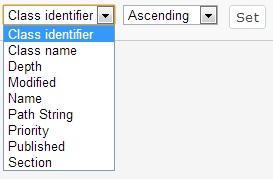
Ordering Content
Sorting sub items in the published page
The sorting is described in a separate chapter below, "Sorting options" as the description applies both to front-end and back-end sorting.
Note: The sorting order given in this window acts as the default sorting order for the "Sub items" list in the back-end as well.
Note2: There is a dynamic sort function in the "Sub items" window that works independent from the sort ordering you set up for the published pages. Look in the "Manage sub items in the back-end" below for a full description of this sort function.
The primary purpose of this window is to reveal and sort information about nodes that are located directly below the one which is being viewed. The sorting function is dynamic and you sort by clicking the title headers of each column.
Under "Table options" you can decide how you wish to display your "Sub Items" list. You decide how many elements per page, either 10, 25 or 50. In the "Visible table columns" you decide which columns you wish to display in your "Sub items" list. Note the new columns for "Visibility", "Node ID" and "Object ID". The "Visibility" column will show the "Hide/Unhide" status of an object.
From version 4.4 the "Content structure" tab, the "Media library" tab and the "User accounts" tab comes with different pre-defined sub items columns. By using the "Table options" dialog, users may customize what columns to show per tab or navigation part, which is stored in a browser cookie. If no cookie or ini setting is defined, the fallback mechanism is to show all columns. The fallback mechanism is to show the default columns defined by the Exponential admin in the "settings/admininterface.ini".
Please find the table with the pre-defined sub items columns below:
| Tabs/navigation area |
Columns |
| The "Content structure" tab |
Name - Visibility - Published date - Priority |
| The "Media library" tab |
Name - Visibility - Type |
| The "User accounts" |
Name - Modifier - Published |
You modify the columns displayed in the sub items table in the "Table options".
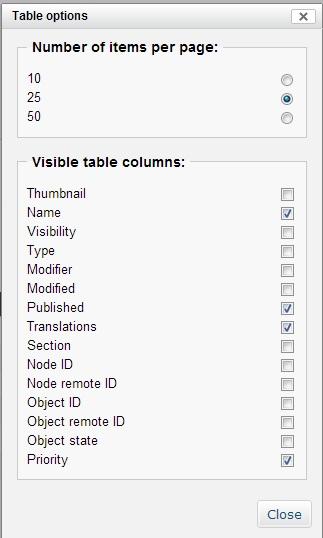
The Sub Items Table Options
The sorting options described below are valid both for the sorting of front-end and back-end sub items.