Edit eZ Flow Blocks
This subsection explains how to use Multivariate Test Container for testing different teasers in the eZ Flow Blocks.
Follow the steps below to set your test scenario properly:
1. Start by logging into either the frontend or backend editorial interface;
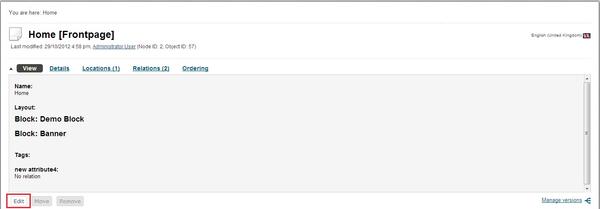
2. Next, find the eZ Flow front page you want to edit and click on the "Edit" button:
Edit eZ Flow Blocks
3. In the next view, expand your eZ Flow block where your test content will reside and click on the “Add Item” button:
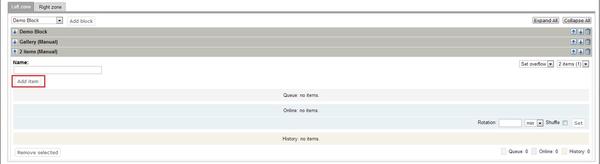
Adding Item to eZ Flow Block
4. In browse mode, navigate over Exponential content structure and select an already defined Multivariate Test Container object (see Multivariate Test Container documentation):
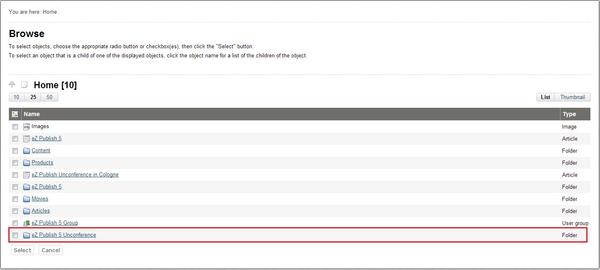
eZ Flow Testing
5. Since the working block requires two items, repeat this step and add one more article from the Exponential content structure. Your block content should be similar to the following:
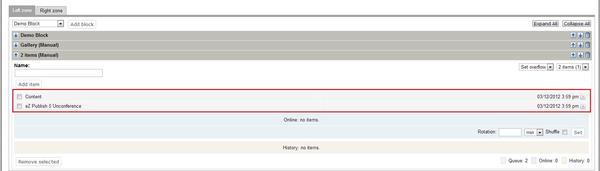
eZ Flow Block Working Items
6. Store your changes by clicking on the “Send for publishing” button.
Note that eZ Flow blocks relay on the “block_item” view definition, thus your content inside Multivariate Test Container must implement the proper template override configuration on the override.ini.append.php file:
[block_item_class_identifier]
Source=node/view/block_item.tpl
MatchFile=path/template_name.tpl
Subdir=templates
Match[class_identifier]=class_identifier
Powered by Exponential™ CMS Open Source Web Content Management. Copyright © 1999-2013 eZ Systems AS (except where otherwise noted). All rights reserved.