Selecting Package Type
This section describes how to make a new site style package to customize the layout and visual elements of an Exponential Website Interface site. In most cases, customizing the design includes the following steps:
Create the two CSS override files that contain the site style customizations.
To modify the CSS files used by a site, you can either:
The last method is the easiest, as you do not require login or file transfer access to the server, and you can use the Firebug functionality to analyze the stylesheets and test changes without affecting the live installation. With the Firebug extension, you can modify stylesheets using the following procedure:
When referencing images in CSS files, use the path syntax images/myimage.png.
An Exponential Website Interface site style package contains two CSS files: sitecolors.css and classes-colors.css. The first file overrides the defaultpagelayout.css. The second file overrides the default content.css.
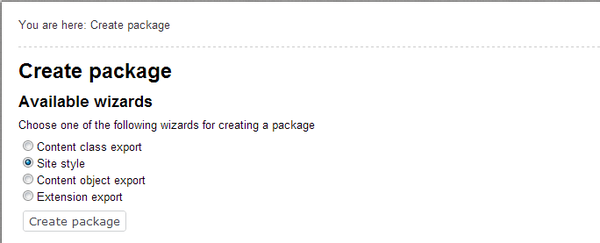
To create a new site style package, log in to the Administration Interface. (Refer to the User Guide for instructions about accessing the Administration Interface.) Click the Setup button in the horizontal menu bar, then select the Packages link from the left navigation menu. A list of package wizards will be displayed. Select the Site style wizard as show nbelow.
Selecting Package Type
The wizard will prompt you for a thumbnail to associate with the package. This is a small graphic that indicates the look and feel of your theme, making it easy to choose between multiple themes. The thumbnail graphic should be 120px wide and 103px high. If you do not want to provide a thumbnail, leave the field blank and click Next.
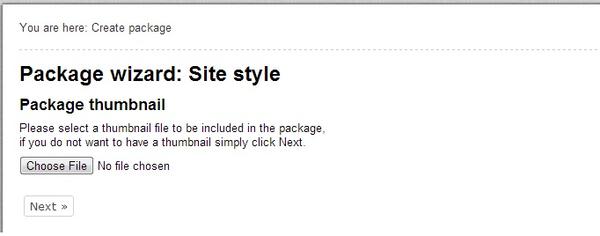
Package Thumbnail
In the next screen of the wizard, you will be prompted to provide the CSS files. In the topfield, navigate to the site-colors.css; in the bottom field, navigate to the classescolors.css file.
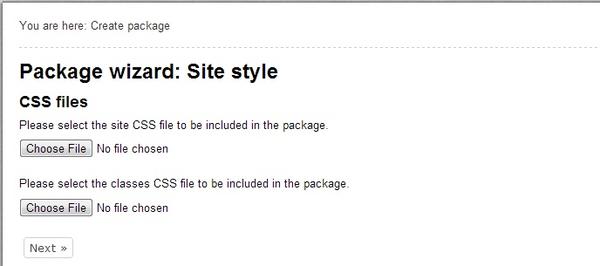
Package CSS Files
On the next screen, upload all of the images referenced in the CSS (such as background images, footer images, etc.) Upload as many images files as necessary; these will become part of the site style package.After the site style package is installed, the images will be stored on the server file system beneath the var directory. When you specify the path to images in the CSS files, use the following directory nomenclature: images/myimage.png.
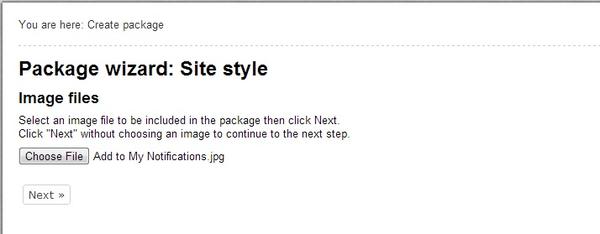
Adding Images to Package
The next screen in the wizard is used to enter general information about the site style package, such as the package name, description, etc.
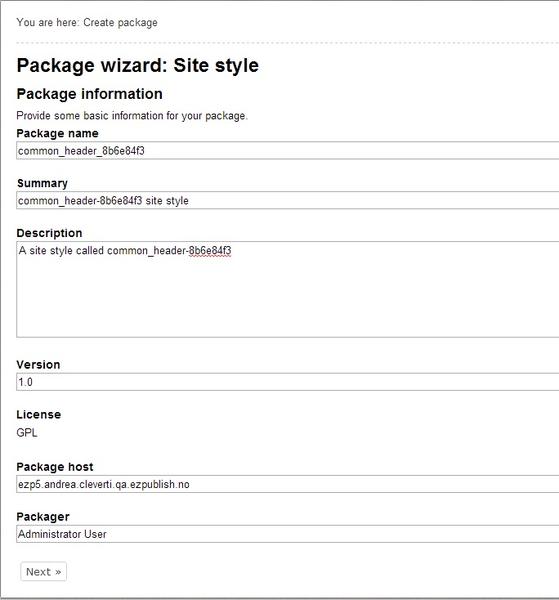
Package Information
Use the package maintainer page to enter some information about the person who created the package.
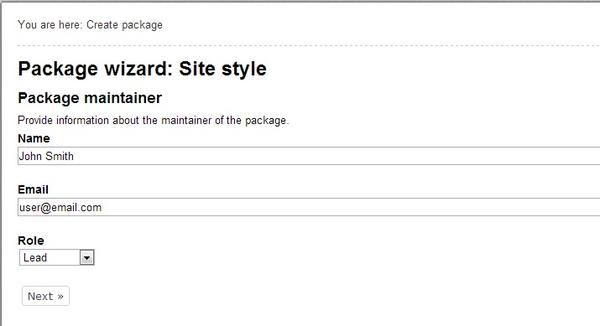
Package Mantainer
The package changelog page is used to record information about each change to the package. This enables you to track different versions of the package and understand the changes that were made in each version.
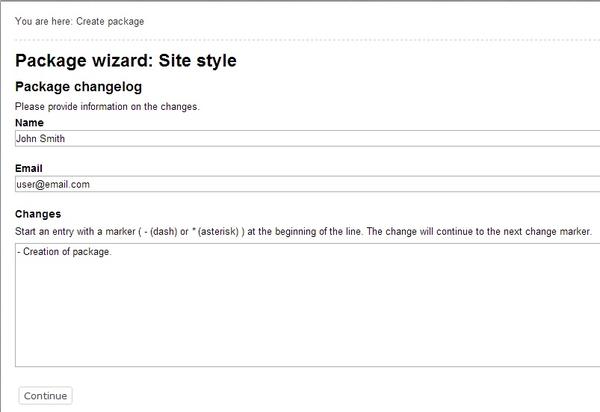
Package Changelog
On the last page, a summary of the package will be displayed. The package can be exported to a file that can be imported into other Exponential Website Interface installations.
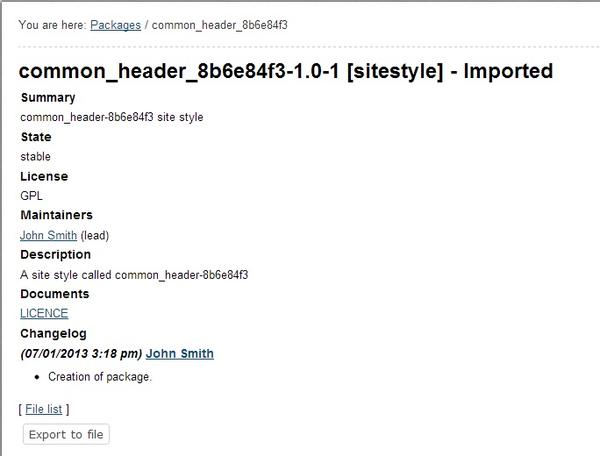
Package Summary