RSS Lists
There are two classes of configuration tasks:
The configuration options available via the Website Interface are the same as the options available in the Administration Interface (in the Design section). In general, this documentation does not describe the Administration Interface functionality. For more information, refer to the Exponential online user manual.
To view or modify the site settings via the Website Interface, log in to the site as the administrator user you configured during the installation, or with another user account that is a member of the “admin” group. (Refer to the User Guide for a description of users and groups.) If the default site style is being used, the Login link is located in the top-right corner of any page.
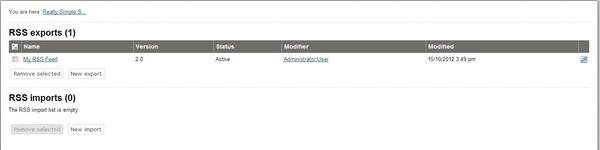
If you want to provide visitors with the ability to subscribe to RSS feeds from your site, you must create an RSS export feed via the Administration Interface. First, log in to the Administration Interface with your “admin” username and password. Next, click on the Setup tab and select RSS from the left navigation menu. A list of existing RSS exports and imports (if any) will be displayed:
RSS Lists
Click on the New export button to create an RSS feed that you can incorporate into the webpages on your site (via the Site settings, described below). An RSS export includes the following attributes:
To configure a source, enter data in the fields as follows:
After you have logged in as a user who is a member of the “Admin” group, you will see a Site settings link in the top-right corner of any page:
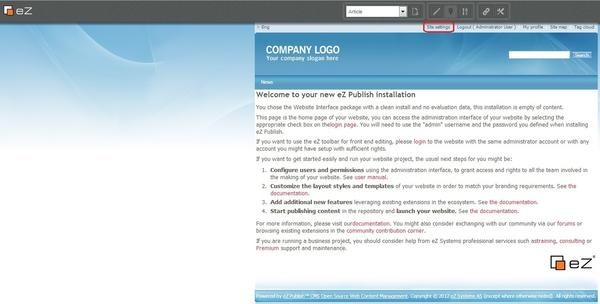
Site Settings Option
The following configuration options are available:
The name of the site. This is usually displayed in the title bar of the web browser.
Meta data is general information that is used by entities such as search engines to index and classify a site. You can modify the values in this text field to better describe your site. See Wikipedia for more information on Meta data: http://en.wikipedia.org/wiki/Meta_data.
To clear the existing contents of the array that stores the meta data, enable Make empty array.
This image is the site logo, displayed by default on the left side of each page above the horizontal menu. Use the Browse and Remove image buttons to change the site logo.
The settings in this section are used for general site settings. While these can be se tindividually for each siteaccess, unless you understand the implications it is best to apply these settings to the Global (override) siteaccess (which means that all siteaccesses will share these settings).
The system administrator's email address. It is used for automatically generated emails from the site, such as notifications of orders in the webshop.
The URL of the website.
To create a site map accessible to visitors to your site, enter data in the following fields:
Tag cloud URL
To make the site’s tag cloud (populated by the words entered in the Tag field for any content object) accessible to site visitors, enter data in the following fields:
This is the text for the login link, located by default in the top-right corner of each page. If this field is blank, the link will not be shown. On mulitlingual sites, to display labels in the language selected by the site visitor, add a translation for the Site settings page in the desired language.
This is the text for the logout link, located by default in the top-right corner of each page. I fthis field is blank, the link will not be shown. On mulitlingual sites, to display labels in the language selected by the site visitor, add a translation for the Site settings page in the desired language.
This is the text for the link to the user profile, located by default in the top-right corner of each page. If this field is blank, the link will not be shown. On mulitlingual sites, to display labels in the language selected by the site visitor, add a translation for the Site settings page in the desired language.
This is the text for the link to the user self-registration page, located by default in the top-right corner of each page. If this field is blank, the link will not be shown. On mulitlingual sites, to display labels in the language selected by the site visitor, add a translation for the Site settings page in the desired language.
Specify the URL to your RSS feed. This URL is inserted in the XHTML stream sent to the browser, which allows visitors to fetch news and updates directly using an RSS client. To determine the URL, refer to the Access URL attribute for the RSS feed object in the Administration Interface.
If you delete the text inside the RSS field in the site settings, the site will not send the above link with the XHTML stream.
This is the text for the link to the shopping basket, located by default in the top-right corner of each page. If this field is blank, or if the user's shopping basket is empty, the link will not be shown. On mulitlingual sites, to display labels in the language selected by the site visitor, add a translation for the Site settings page in the desired language.
This is the text for the link to this settings page, located by default in the top-right corner of each page. If this field is blank the link will not be shown. On mulitlingual sites, to display labels in the language selected by the site visitor, add a translation for the Site settings page in the desired language.
This is the text that appears at the bottom of each webpage, right above the “Powered by”text. It is meant to be used for copyright information. The default text says “Copyright© 2006 eZ systems AS. All rights reserved.”, where “©” is the HTML entity forthe copyright symbol.
By default, two lines are displayed at the bottom of each page that identify the site as being run on Exponential. To prevent the display of this information, check this box.
To add a snippet of JavaScript in each page footer, enter the code in this field.
Powered by Exponential™ CMS Open Source Web Content Management. Copyright © 1999-2013 eZ Systems AS (except where otherwise noted). All rights reserved.